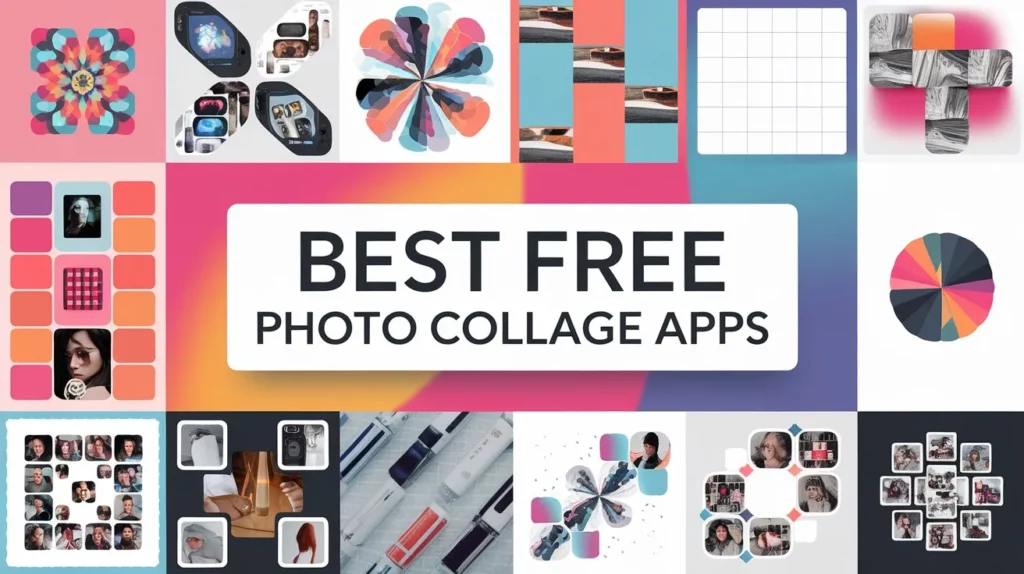
The Best Photo Collage Makers With Grid Layouts and Graphic Customization in 2026
Introduction
Creating a beautiful photo collage used to require expensive software, a steep learning curve, and hours of fiddling with layouts that never quite lined up. Today, the best photo collage makers offer drag-and-drop grids, deep graphic customization, and results that look polished enough to print, post, or present. Whether you are pulling together family memories, building a brand mood board, or designing social media content, the right tool makes the whole process faster and more enjoyable. This guide breaks down exactly what to look for in 2026 and shares practical tips to help you get the most out of whichever platform you choose.
Why Grid Layouts Matter More Than You Think
Grid layouts are the backbone of any great photo collage. A well-designed grid gives the eye a clear path to follow, balances negative space against imagery, and makes your photos feel intentional rather than scattered. Without a reliable grid system, even beautiful photos can look like a random pile of snapshots.
In 2026, the best collage tools have moved well beyond the old days of fixed 2×2 or 3×3 templates. Modern grid layouts are responsive, meaning they adapt intelligently when you swap out a landscape photo for a portrait one. Many platforms now offer asymmetrical grids, mosaic patterns, and free-form arrangements that still snap to alignment guides so nothing looks crooked.
When evaluating a collage maker, pay attention to how the grid behaves when you resize it. A rigid grid that distorts your images when you change the canvas dimensions is a red flag. Look for tools that let you lock aspect ratios per cell and resize the overall canvas without sacrificing photo quality.
What Graphic Customization Features Should You Expect in 2026
Graphic customization goes far beyond slapping a filter on your photos. The top collage makers in 2026 give you granular control over borders, spacing, backgrounds, typography, stickers, color overlays, and more. Here is a closer look at the features worth prioritizing.
Border and Spacing Controls
Being able to adjust the gap between photos, or choose whether to have a border at all, is one of those small details that dramatically affects the final look. Thin borders give a magazine editorial feel. Wider white space feels modern and airy. Some tools let you set different border weights for the outer frame versus the inner gutters, which is a level of control that professionals genuinely appreciate.
Text and Typography Options
Adding text to a photo collage is about more than picking a font. Look for tools that let you layer text over images, adjust opacity, control letter spacing, and choose from a wide font library. The ability to curve text or add text boxes with custom background fills can turn a simple grid into a proper graphic design piece.
Color and Theme Consistency
Some of the best collage tools now offer brand kit integration or color palette locking, which means every element you add automatically pulls from a curated set of colors. This is especially useful for businesses and creators who need every piece of content to feel cohesive.
10 Tips for Finding and Using the Best Photo Collage Maker
1. Start With Your End Use in Mind
Before you open any tool, ask yourself where this collage is going. A collage headed for Instagram Stories needs a 9:16 canvas. A printed poster needs a high-resolution export, ideally at 300 DPI. A website header might need a 16:9 landscape layout. Knowing your destination upfront saves you from redesigning everything after the fact.
2. Prioritize Tools That Offer Template Libraries
Starting from scratch every time is inefficient. The best collage makers offer hundreds of professionally designed templates organized by use case, season, or aesthetic. A strong template library does not limit your creativity; it gives you a smart starting point that you can then customize to make your own. Look for tools where templates are genuinely editable from top to bottom, not just placeholders where you can only swap photos.
3. Look for Intelligent Photo Fitting Options
One of the most frustrating experiences in collage-making is uploading a photo and watching the tool crop out the most important part of the image, like someone’s face or the subject of a product shot. In 2026, many platforms use smart cropping powered by machine learning that detects focal points and adjusts the crop accordingly. This feature alone can save enormous amounts of time when you are working with a large batch of photos.
4. Take Advantage of Adobe Express for Flexible Grid Collages
If you want a tool that combines professional design quality with an interface that does not require a design degree, the collage maker from Adobe Express is worth bookmarking. It offers a wide selection of grid layouts, intuitive drag-and-drop editing, and access to Adobe’s extensive font and asset library. You can customize borders, backgrounds, and colors with precision, and the export options cover everything from social media to print. Because it is browser-based, there is no heavy software to install, which makes it accessible whether you are on a laptop, tablet, or desktop.
5. Test the Drag-and-Drop Experience Before Committing
Not all drag-and-drop interfaces are created equal. Some feel fluid and responsive; others lag, misplace photos, or require you to drop items into tiny target zones. If a collage maker offers a free trial or free tier, use it to drag photos around before you invest time or money. The interaction quality of the editing experience matters just as much as the features listed on the marketing page.
6. Check for Layer Management Capabilities
If you want to add text, stickers, or graphic elements on top of your photo grid, you need a tool with proper layer management. This means being able to reorder elements, lock layers you do not want to accidentally move, and group related items together. Without layer control, adding even a simple text overlay can become a frustrating guessing game.
7. Pay Attention to Export Quality and File Format Options
The collage you create is only as good as the file it produces. Make sure your chosen tool exports in formats appropriate to your needs: JPEG and PNG for digital use, PDF for print, and ideally SVG or high-resolution PNG for designs that may need to be scaled up later. Some tools compress exports aggressively to keep file sizes small, which can result in blurry or pixelated collages when printed.
8. Explore Background Customization Beyond Solid Colors
A white or black background is a safe choice, but the best collage makers let you go further. Look for tools that let you use a gradient, a pattern, a texture, or even a separate photo as the background behind your grid. This small detail can transform a basic photo grid into a layered, visually rich composition that stands out from the crowd.
9. Use Consistent Spacing to Create Visual Rhythm
One of the most underrated design principles in collage creation is visual rhythm, which is the idea that repeating spacing, color, or shape creates a sense of harmony that feels satisfying to look at. When you use consistent gutter spacing between every photo, even if that spacing is zero, your collage reads as intentional and polished. Uneven spacing is one of the most common mistakes beginners make, and it is usually the first thing a trained eye notices.
10. Save Your Work in an Editable Format
This one sounds obvious but is easy to overlook. Always save a version of your collage in the tool’s native or editable format before exporting a flattened image. If you need to swap out one photo later, change a caption, or resize for a different platform, having that editable file means you are making a small update rather than starting from scratch. Many tools auto-save to the cloud, but it is worth double-checking that your project is recoverable.
How to Evaluate Grid Layout Flexibility
Not every grid works for every photo collection. A symmetrical grid is great for showcasing products or headshots where every image has roughly the same composition and importance. An asymmetrical grid or featured layout, where one large photo anchors the design and smaller photos surround it, is better for storytelling, where one hero moment deserves more visual weight.
When evaluating flexibility, look for tools that let you manually drag the dividers between grid cells to resize individual sections. This is sometimes called a “free grid” or “custom grid” feature. It gives you the control to make one cell twice as wide as its neighbor, which is perfect for including a wide panoramic shot alongside a series of tighter portrait photos.
Another useful feature is the ability to rotate individual photos within their grid cell without rotating the entire canvas. This allows you to create interesting visual tension or correct a slightly crooked shot without opening a separate editing app.
Tips for Graphic Customization That Elevates Your Collage
Beyond the photo grid itself, the graphic elements you layer into a collage are what separate a memorable design from a forgettable one. Here are a few customization approaches worth exploring.
Use Color Overlays Intentionally
Placing a semi-transparent color overlay on one or two photos in your grid can create a focal point and add visual interest without overwhelming the composition. This technique works especially well when you want to place readable text over a busy image.
Mix Photo Styles Thoughtfully
Combining black-and-white photos with full-color ones in the same collage can be a powerful design choice, but only when it is intentional. Before mixing styles, ask yourself whether the contrast serves the story you are telling. When done well, it draws the eye to a specific moment. When done randomly, it just looks inconsistent.
Add a Unifying Design Element
A thin line, a repeated icon, or a shared color applied to multiple cells can tie a diverse set of photos together visually. This is especially helpful when your photos were taken in different lighting conditions or locations and do not naturally feel cohesive.
Frequently Asked Questions
What is the difference between a photo collage maker and a photo editor?
A photo editor is primarily designed for adjusting individual images, correcting exposure, removing blemishes, or applying filters to single photos. A photo collage maker, by contrast, is designed to arrange multiple photos into a unified composition. Many modern tools blur this line by offering basic editing capabilities alongside their collage features, which can be convenient. However, for serious photo retouching, a dedicated editor will always offer more precision and control. Think of a collage maker as a layout and design tool first, with editing features as a bonus rather than a core function.
How do I choose the right grid layout for my collage?
The right grid depends on the number of photos you have, the story you want to tell, and where the collage will be displayed. If you have three to four photos of roughly equal importance, a symmetrical grid works well. If you have one standout image and several supporting photos, consider a featured layout with one large cell and several smaller ones surrounding it. For large collections of ten or more photos, a mosaic or magazine-style grid can handle the volume without making the design feel cramped. It also helps to sketch out a rough hierarchy beforehand, deciding which photo you want the viewer to see first and building the grid around that anchor image.
Can I make a photo collage for print, or are these tools only for digital use?
Most reputable photo collage makers support print-ready exports, but you need to check the resolution and file format options before assuming. For professional printing, you generally need a minimum resolution of 300 DPI at the intended print size. Some browser-based tools export at screen resolution, which is 72 or 96 DPI, which looks fine on a monitor but will appear blurry when printed. Before choosing a tool for a print project, look specifically for the ability to export at high resolution or as a print-ready PDF. If you are ordering prints through a service, check their required file specs and confirm your chosen tool can meet them. A useful resource for understanding print file requirements is the Printing for Less knowledge base, which covers specifications for a wide range of print formats.
How many photos can I include in a single collage without it looking cluttered?
There is no universal rule, but a good guideline is to give each photo enough space that a viewer can appreciate it on its own before their eye moves to the next one. For a standard social media post, four to six photos tend to be the sweet spot. For a printed poster or large format display, you can comfortably go up to twelve or fifteen photos if the grid is well-organized. Beyond that, individual images tend to get so small that the details are lost, and the overall effect becomes more of a texture than a true collage. If you have a large batch of photos to showcase, consider breaking them into multiple collages organized by theme or timeline rather than cramming everything into one design.
What should I do if my photos have different aspect ratios and the grid crops them awkwardly?
This is one of the most common challenges in collage-making. The best approach is to choose a collage tool that offers per-cell crop adjustments, meaning you can manually reposition and zoom a photo within its cell to control exactly what is visible. If the tool does not offer this, you can pre-crop your photos to consistent aspect ratios in a separate photo editor before importing them. Another option is to choose a grid layout that accommodates mixed orientations by design, such as a mosaic layout that uses cells of varying sizes to naturally accommodate landscape, portrait, and square photos without forcing them all into the same box.
Conclusion
The best photo collage makers in 2026 are more capable and more intuitive than ever before. With the right grid layout, thoughtful graphic customization, and a tool that matches your skill level and workflow, you can produce results that look genuinely professional in a fraction of the time it would have taken just a few years ago. The ten tips in this guide give you a practical framework for evaluating tools, building better compositions, and avoiding the most common pitfalls.
Whether you are a small business owner building marketing materials, a photographer curating a portfolio, or someone putting together a keepsake album, there is a collage maker designed to meet you where you are. Start by identifying your end use, explore tools that offer real grid flexibility and deep customization options, and do not be afraid to experiment with templates as a starting point. The best collage is the one you actually finish, and with the right tool in hand, that finishing line is closer than you think.